Structure Layouts
Layouts for organizing your presentation structure - title slides, sections, and endings.
cover - Title Slide
Use for: The first slide of your presentation

---
layout: cover
authors:
  - name: Your Name
    institution: Your University
    email: [email protected]
footerMiddle: Conference Name 2025
---

# Your Presentation Title
Subtitle or description
What it shows:
- Large title in the center
- Author(s) with institution and email
- Footer with author, conference, page number, and live beamer-style navigation buttons
default - Standard Content
Use for: Most of your slides (this is automatic!)
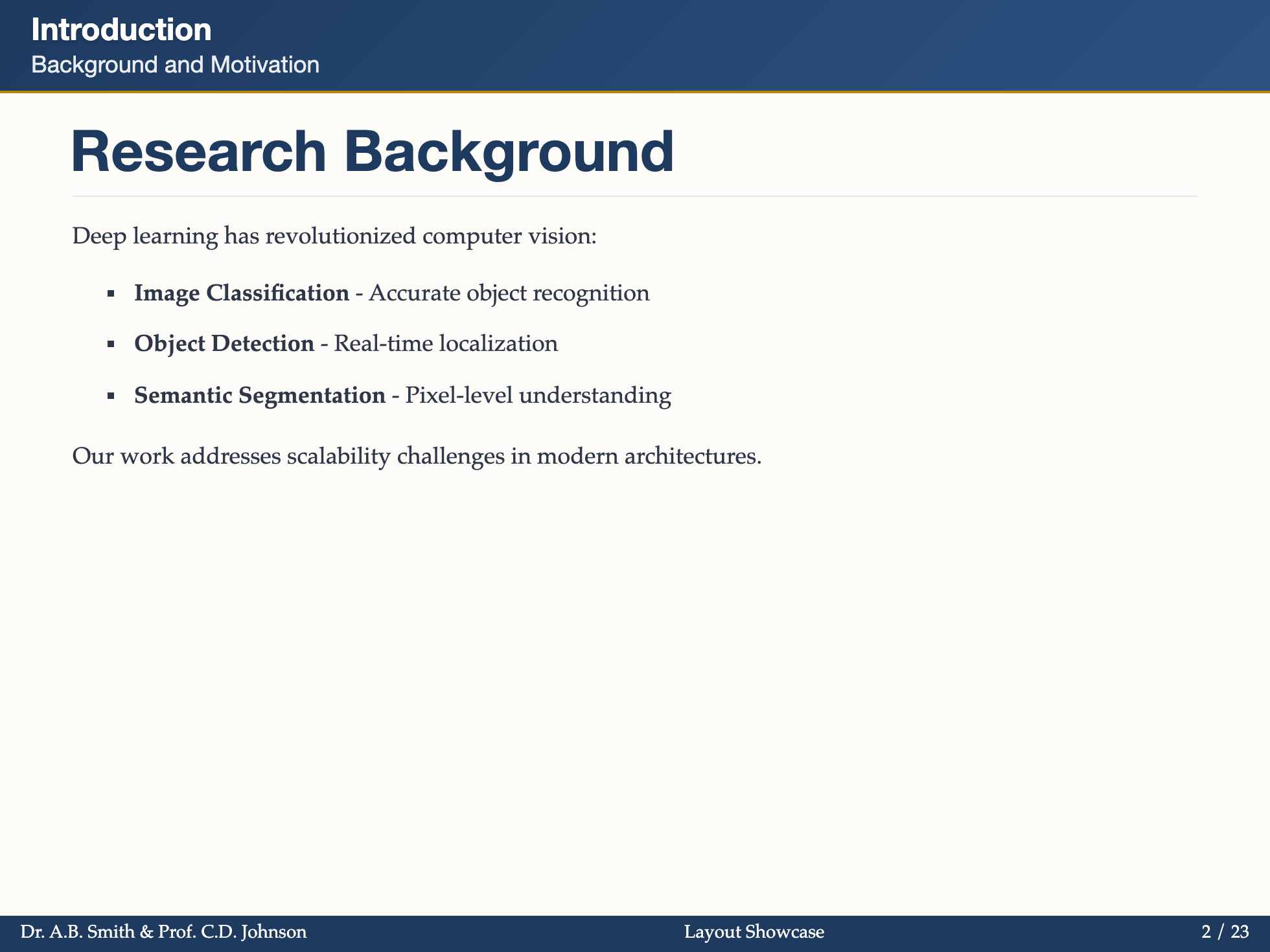
---
title: My Slide Title
subtitle: Optional subtitle
---

# Main Content

- Bullet point 1
- Bullet point 2

You can add text, images, code, math formulas, etc.
What it shows:
- Optional header with title and subtitle
- Your content in the middle
- Footer at the bottom with page number and live beamer-style navigation buttons
intro - Section Introduction
Use for: Starting a new section of your talk
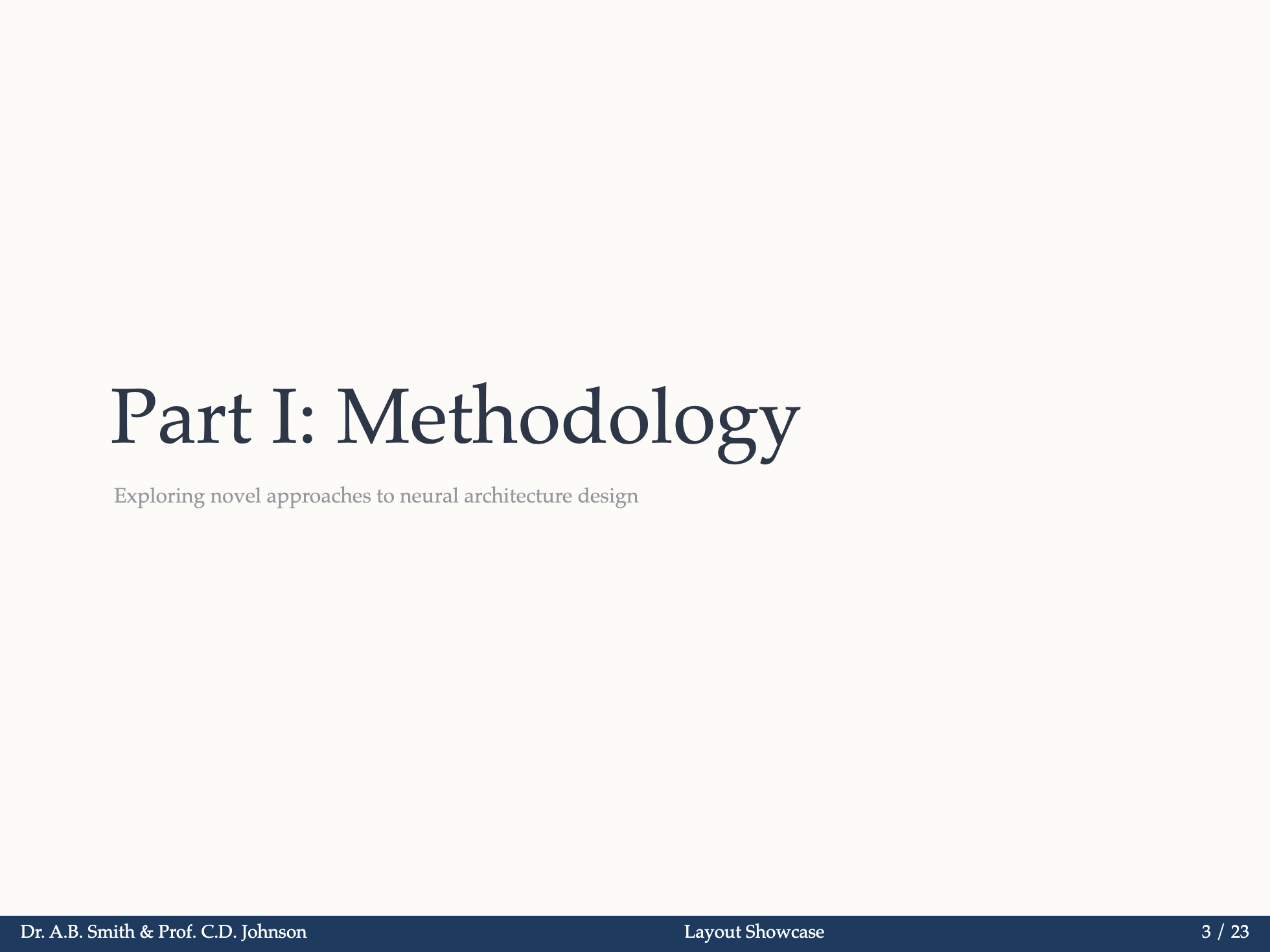
---
layout: intro
---

# Part 2: Methodology

Let's discuss our approach
What it shows:
- Large, centered text
- No header (more space for the title)
- Footer at the bottom
section - Chapter Divider
Use for: Major transitions in your presentation
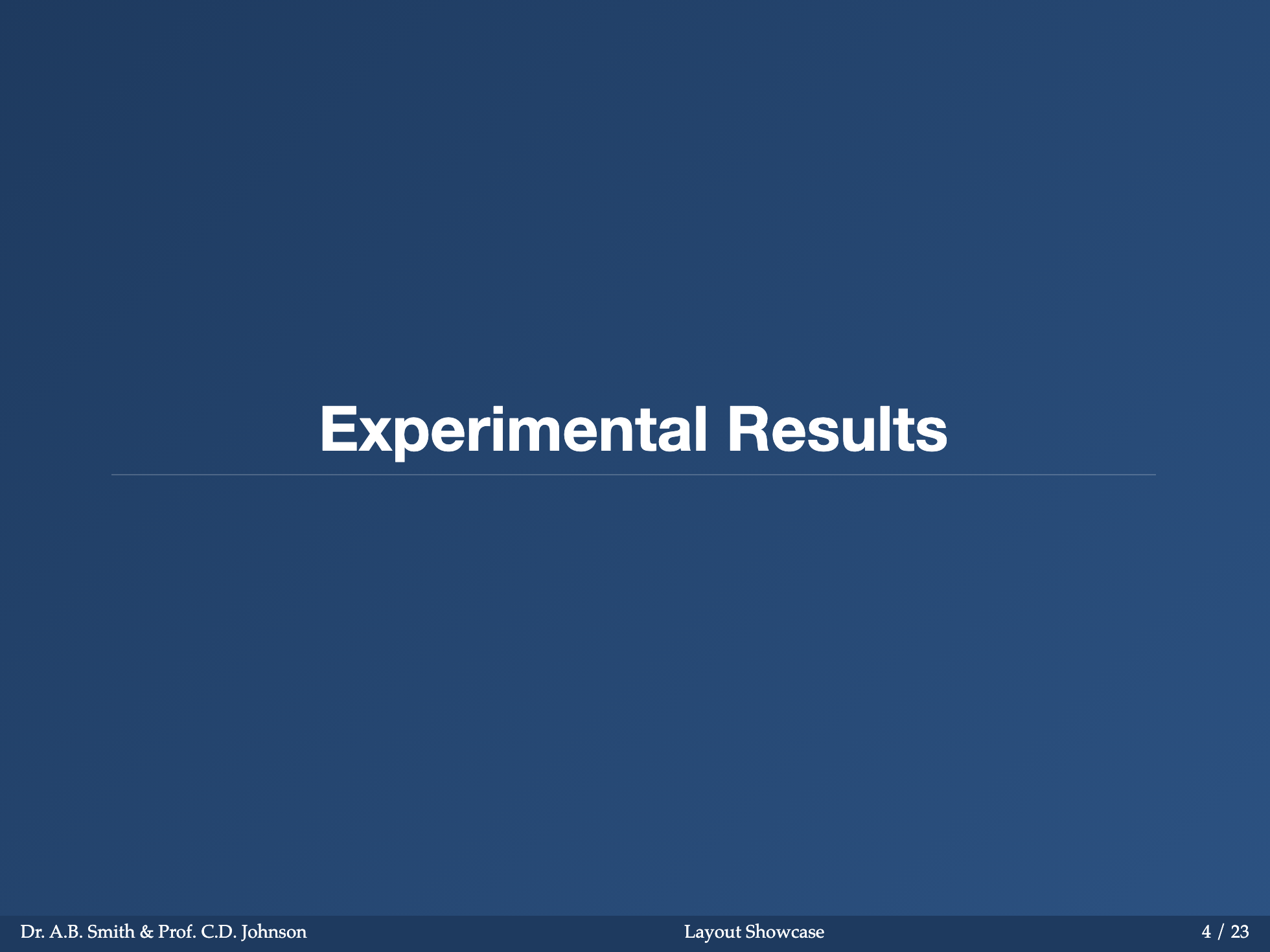
---
layout: section
sectionMode: dark  # dark, light, match, or inverse (optional, default: dark)
---

# Results
What it shows:
- Very large, centered title
- No header
- Footer at the bottom
- Perfect for dramatic section breaks
sectionMode Options:
| Value | Description |
|---|---|
dark | Dark background with light text (default) |
light | Light background with dark text |
match | Match the current global contentMode |
inverse | Use the opposite of the current global contentMode |
Global vs Per-slide Configuration:
You can set a global default in your headmatter:
---
theme: scholarly
themeConfig:
  contentMode: light
  sectionMode: match  # All sections match the global content mode
---
Then override on specific slides:
---
layout: section
sectionMode: inverse  # Override global setting for this slide
---

# This Section Uses the Inverse Mode
toc - Table of Contents
Use for: Outline/agenda slide (auto-generated from your layout: section slides)
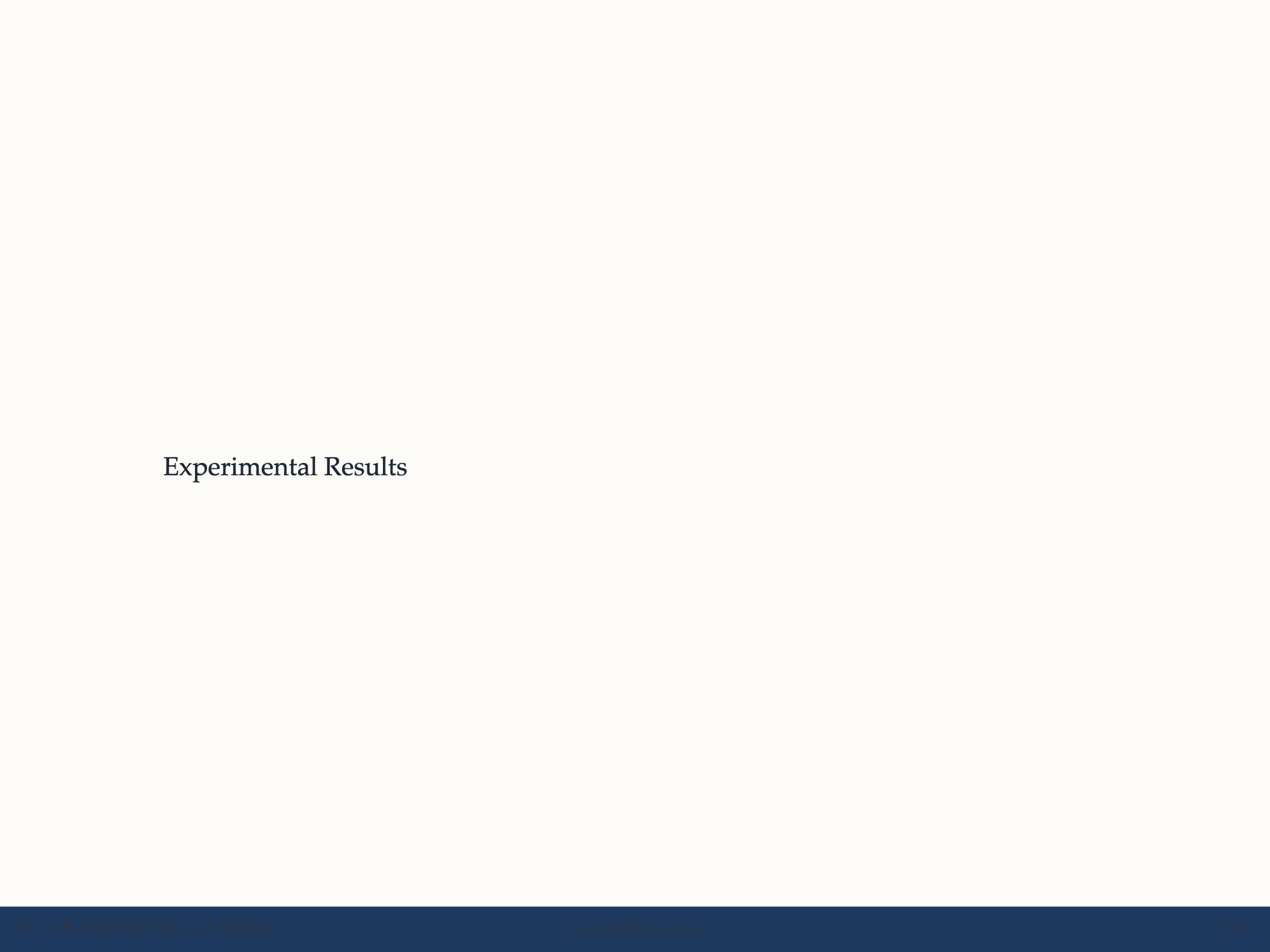
---
layout: toc
title: Outline        # set to false to hide
showNumbers: true     # optional, default: true
highlightCurrent: true # optional, default: true
---
What it shows:
- A title (defaults to
Outlineor目录based onlang) - A list of all
layout: sectionslides (click to navigate)
Props:
| Prop | Type | Default | Description |
|---|---|---|---|
title | string | false | Outline | Title text, set to false to hide |
showNumbers | boolean | true | Show numbered badges |
highlightCurrent | boolean | true | Highlight the current section |
sections | string[] | - | Manually specify section titles (overrides auto-extraction) |
center - Centered Content
Use for: Short messages or key points
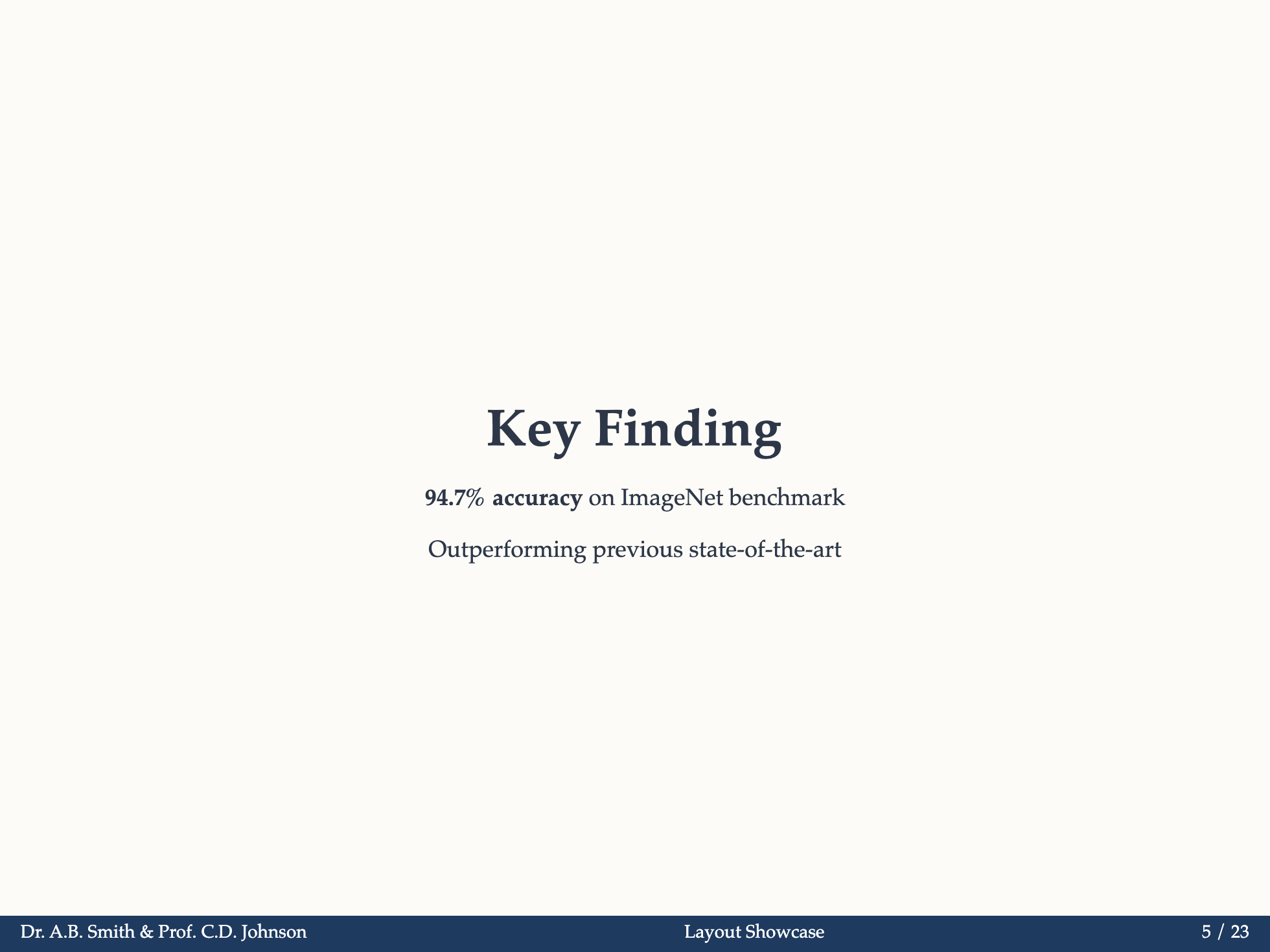
---
layout: center
---

# Key Takeaway

This is the most important point
What it shows:
- All content centered horizontally and vertically
- Great for emphasis
auto-center - Auto-Adjusting Content
Use for: Content that needs automatic font size adjustment
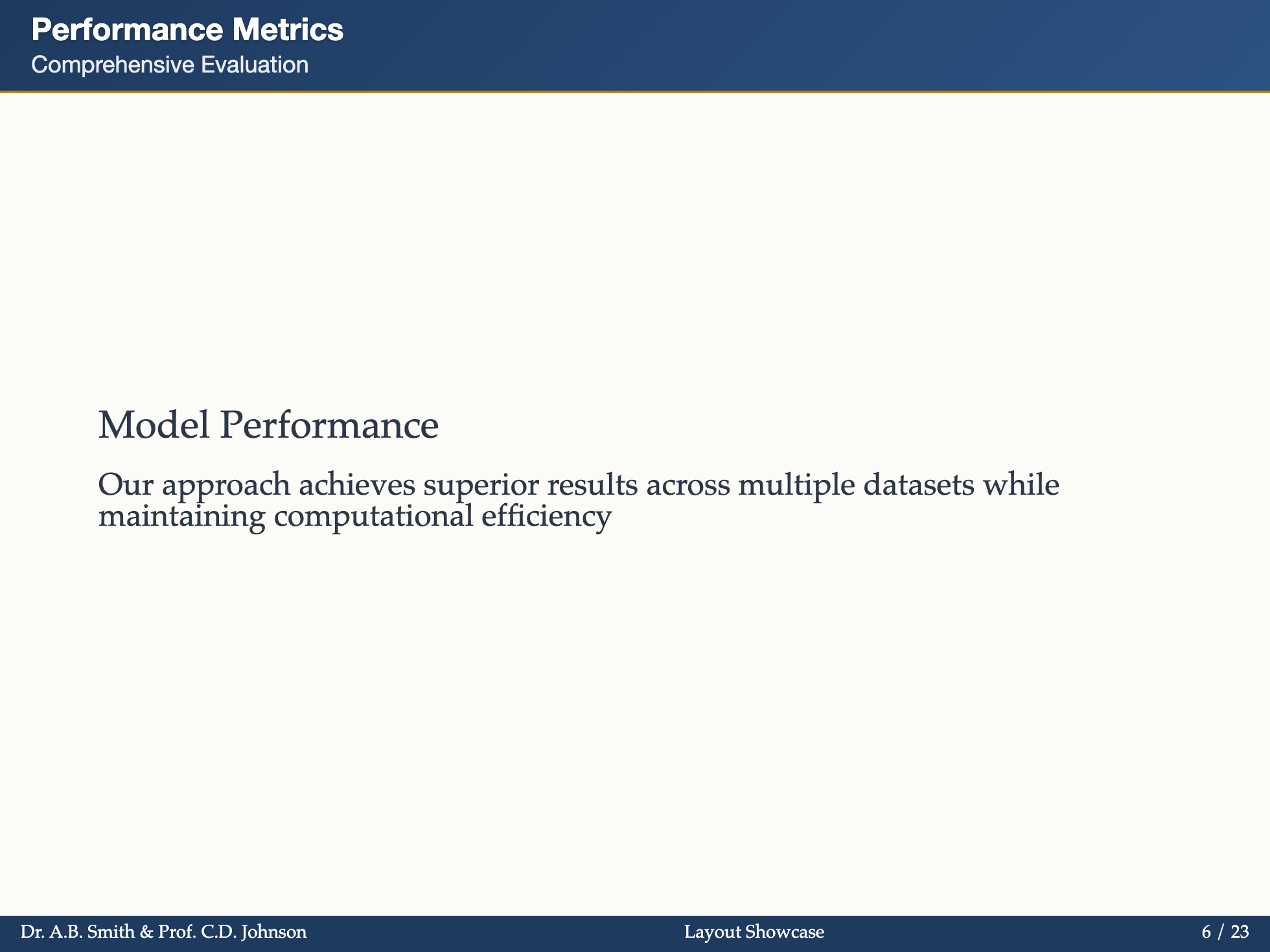
---
layout: auto-center
title: Title
subtitle: Subtitle
---

## Auto-Centered Content

This layout automatically adjusts font size to fit content.
What it shows:
- Automatically adjusts font size based on content length
- Centers content vertically
- Keeps text left-aligned within the centered block
auto-size - Fit-to-Page Default Layout
Use for: Default-style slides that should behave more like a LaTeX Beamer frame
---
layout: auto-size
title: Title
subtitle: Subtitle
autoSizeGrow: true
autoSizeAlign: top
autoSizePadding: normal
minFontSize: 14
maxFontSize: 30
---

## Auto-Sized Main Matter

This layout keeps the default reading flow,
but it adjusts the main matter font size to fit the page.
What it shows:
- Keeps the default header and footer structure
- Fits the main matter to the available width and height
- Keeps content top-aligned instead of vertically centered
- Supports
minFontSizeandmaxFontSizefrontmatter overrides
Configuration entry points:
autoSizeGrow: true | false- allow sparse slides to grow above their base size, or only shrink when neededautoSizeAlign: top | center- keep the main matter pinned to the top or vertically centered inside the available areaautoSizePadding: compact | normal- switch between tighter and roomier inner spacing for the main matter box
end - Thank You Slide
Use for: Professional closing slide with contact information
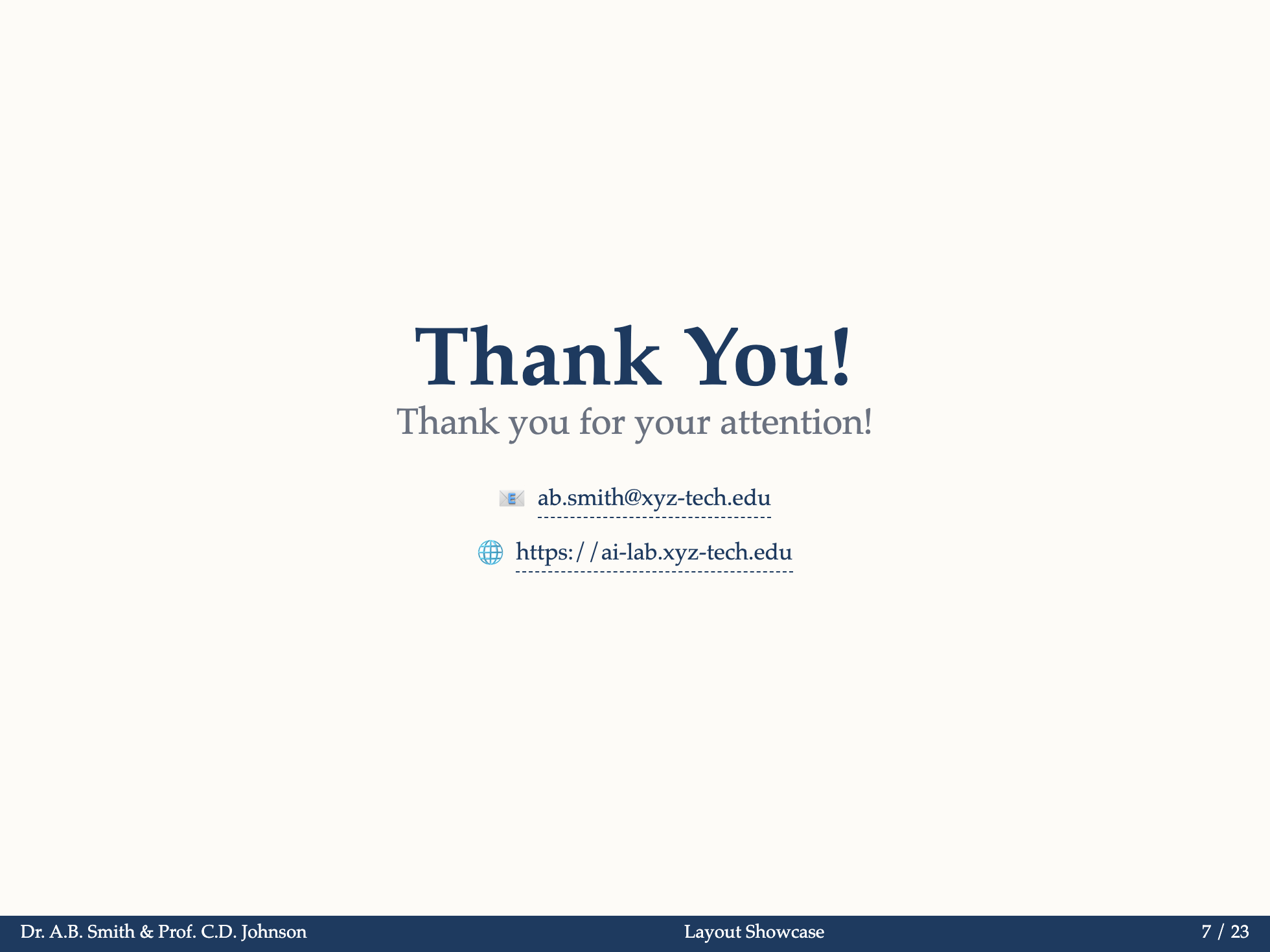
---
layout: end
email: [email protected]
website: https://example.com/project
subtitle: Questions?
qrcode: https://example.com/qr.png
qrcodeLabel: Scan for paper
---

Thank you for your attention!
Props:
thankYou: Custom thank you text (default: "Thank You!")subtitle: Subtitle textemail: Contact emailwebsite: Project/personal websiteqrcode: QR code image URLqrcodeLabel: Label for QR code